
Register a Network software license
GTX provides a multiple user (floating) software license in the form of a file named GTXNET.LIC. GTX will create the GTXNET.LIC file based on the information created by the output from the GTX Registration Wizard. Read the following detailed license registration procedure.
Note: For complete information about the GTXNET.LIC file, read the topic The GTX Multiple User License File.
The GTX multiple user (floating) license must be registered to a License Server System, which is permanently dedicated to a particular computer.
On the chosen License Server machine where the network tools were installed run the GtxRegistrationWizard.exe application.
Network Licensing - Overview of obtaining a network (multi-user) license
Step 1: Download
Download the latest version of the GTX-Flex licensing utilities to the computer that will be hosting the license manager server. Unzip the tools and browse to the unzipped utility folder.
Note: GTXRaster CAD® Series Version 2018 and upwards, and GTXImage CAD Series V28 are required to use the latest GTX Flex Lm V11.19.2.0 licensing tools listed above.
For details on the utilities and older unsupported Windows OS platforms: Details
Step 2: Register
Run the GTX Registration Wizard (GtxRegistrationWizard.exe) to create the GTXREGISTRATIONINFO.TXT file.
GTX Email the GTXREGISTRATIONINFO.TXT file as an attachment to activate@gtxeurope.com
Step 3: EMail
GTX Email the GTXREGISTRATIONINFO.TXT file as an attachment to activate@gtxeurope.com
Step 4: Install License Files
GTX will send a reply email with two license files. The client license file, gtx.lic, will be copied to each user’s computer in the application installation folder.
The network license file, gtxnet.lic, is copied to your Software License Activation folder on the server.
Step 5: Configure Network Server
For details on configuring the network server: Configuration Example
Note that it is an example as the screenshots and descriptions may differ depending on which products are licensed.
The registration process begins by running the Wizard. The following instructive message will be displayed.
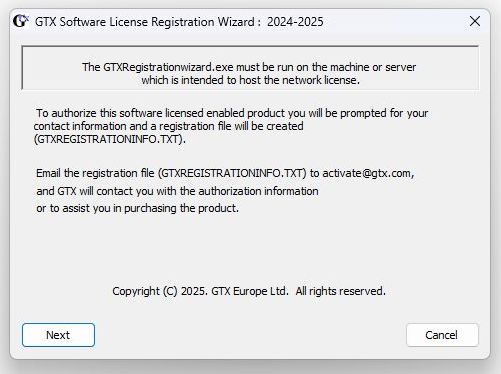
Pressing the Next button allows the GTX Registration Dialog to be displayed.
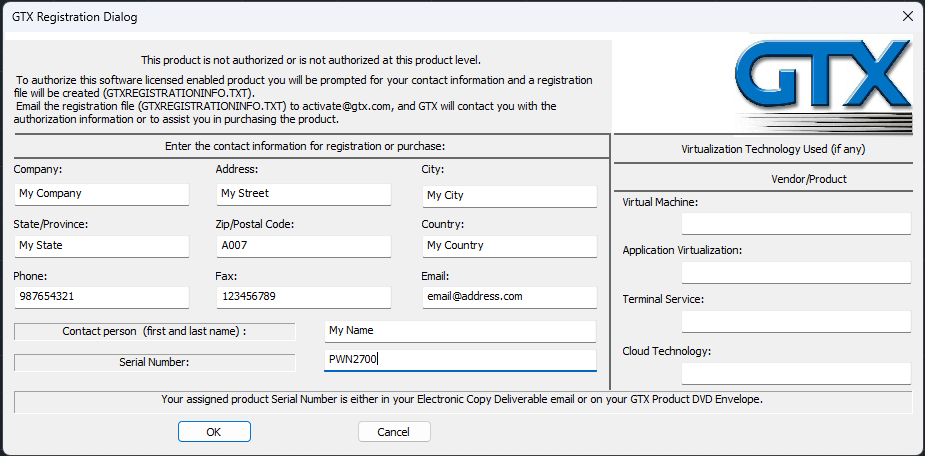
For this step to succeed, all fields of the GTX Registration Dialog must be completed. If a product serial number has not yet been provided by GTX, the serial number field may contain entries of “ABC123” or “NONE”, as instructed on the last line of the Registration Dialog.
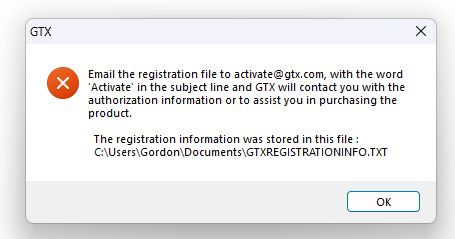
Success in this entry of information will result in the following instructive message.
This message displays the name of the GTXREGISTRATIONINFO.TXT file, which should be emailed to activate@gtxeurope.com.
Note: The GTXREGISTRATIONINFO.TXT is created and stored in the [My Documents/Documents] folder.
If all is well with this transaction, GTX will return, to the email sender, an active, authorized, GTXNET.LIC file which is applied on the License Server System computer as instructed by the Configure the GTX License Server System instruction. GTX will also return, to the email sender, a GTX.LIC file which must be
copied to the main GTXRaster CAD Series folder of each GTX client installation.
The GTX.LIC license file is used to identify the License Server System computer, where the GTX vendor service is running.