
GTX Starts in Demonstration Mode
Why does my GTX program start in Demonstration mode?
The GTXRaster CAD and GTXImage CAD series programs may be installed and operated, even without a purchased license. The demonstration mode procedure for the program is the same as the licensed mode, except for the process of installing and activating a license.
When installed without a valid licnese the Demonstration mode messages may appear when starting a session of GTXRaster CAD or GTX Image CAD. A series of messages provide clues for use in troubleshooting.
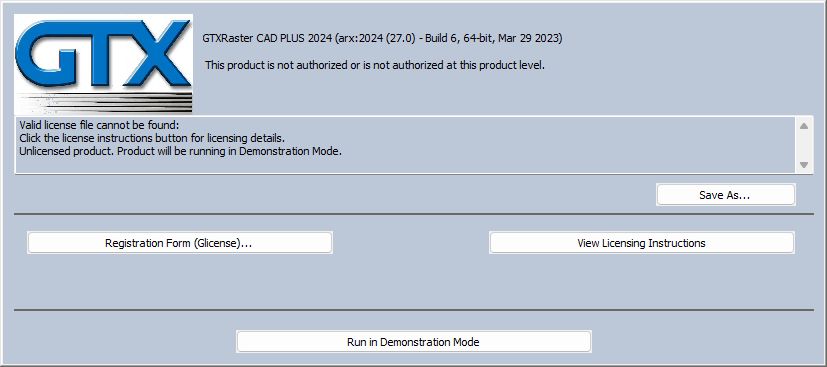
If GTXRaster CAD or GTXImage CAD have been installed yet the user still gets the “Demonstration Mode” message on start up, this could be down to the wrong “Product Level” has been installed.
The installed program version does not match the license provided by GTX
On the start of the GTX program, alert messages followed by a Demonstration mode message will appear if there is a version mismatch between the license provided by GTX and the version of GTXRaster CAD or GTXImage CAD that was installed.
GTX determines the program version that a license will support according to the GTX serial number of the purchased program. The program version that was chosen during installation “CAD” or “PLUS” may be determined after the start of the GTX program session by entering the gInfo command on the AutoCAD or GTXImage CAD command line. To correct version inconsistency, changeable configuration variables in the GTX program folder’s gtxrast.cfg file may be adjusted, as defined in the following.
For GTXImage CAD, the product level and Demo mode controls
REM **Product level. Settings include ICAD, ICADPLUS.**
ProductLevel=ICADPLUS
DEMOMODE=NO
For GTXRaster CAD, the product level and Demo mode controls
REM **Product level. Settings include RCAD, RCADPLUS.**
ProductLevel=RCADPLUS
Demomode=NO
These messages may be expected if there is a program/license version inconsistency.