How do I add or change GTX menus in AutoCAD? All current GTXRaster CAD versions now feature GTX menus in the CUIX file format.
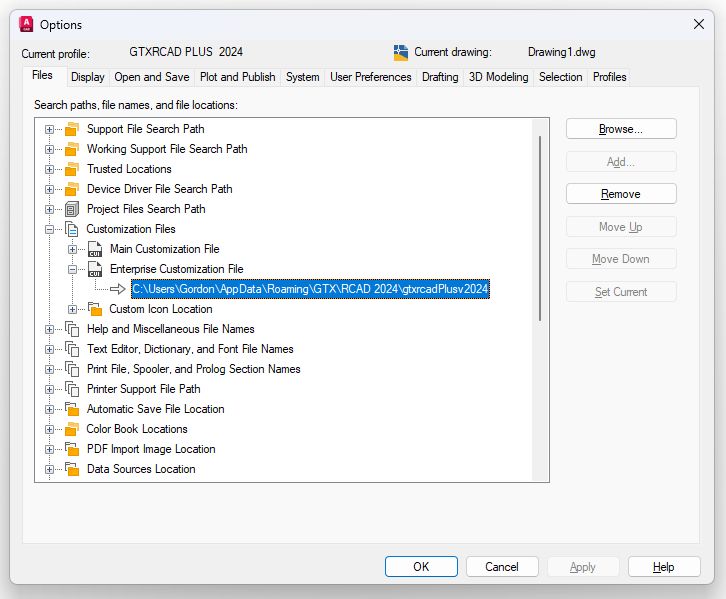
Initially the GTXRaster CAD installation configures the GTX menu, that is appropriate for the GTX program level, as an Enterprise Customization File. This may be achieved manually by opening the AutoCAD Options window, selecting Customization Files>Enterprise Customization File then use the Browse button to browse to the GTXRaster CAD file installation “Support” folder where you will see CUIX files for each of the GTX product levels.
Using Menuload to add or remove GTX menus
All versions of GTX menus may be loaded using AutoCAD’s Menuload command. This method incorporates GTX menu elements as part of AutoCAD’s menu structure where the GTX menu components are not separately manageable as when they are identified as an Enterprise Customization.
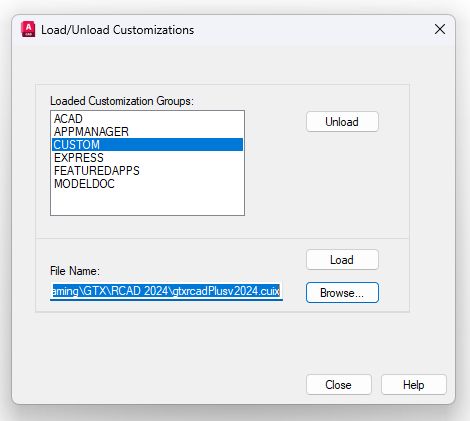
Select the “CUSTOM” option and then browse to the path where the CUIX file are located.
Load the appropriate CUIX file as per the version of GTXRaster CAD you are authorized to use.
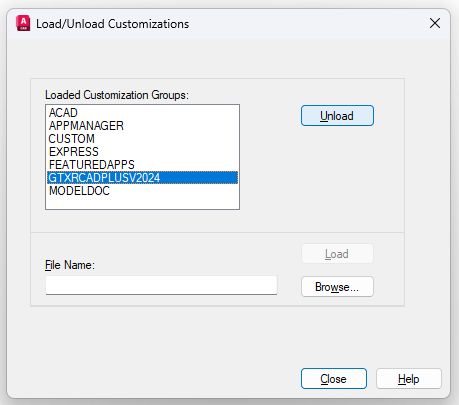
The GTXRCAD menu group wil now be displayed and the GTX Menus and toolbars will be displayed.
To “UNLOAD” the GTX CUIX file, simply run the “Menuload” command, select the GTX menu group and select “UNLOAD“, this will unload the GTX CUIX file.