
GTX Product Levels
Description:
GTXImage CAD Series and GTXRaster CAD Series products may be purchased in either a CAD license level or a CAD PLUS license level. GTXRaster CAD Series additionally may be a TOOLS license level or an R2V license level. For a user who owns some combination of license levels, programmed into a NetHASP floating license hardware key, it is possible to access the variety of licenses on a single computer which has only one version of the GTX application installed. A file named GTXRAST.CFG controls which license level is requested by the started GTX application. This ‘level’ search is specified in an editable configuration variable, labeled PRODUCTLEVEL=. The possible product levels are specified by one of the following variable values:
PRODUCTLEVEL=ICAD
PRODUCTLEVEL=ICADPLUS
PRODUCTLEVEL=RCAD
PRODUCTLEVEL=RCADPLUS
Example:
For an example of how to access multiple license levels on one computer, let’s assume a floating Flex LM Network license has been authorized to distribute licenses for GTXRaster CAD and GTXRaster CAD Plus. Let’s also assume the application was installed to one computer as GTXRaster CAD in the folder named C:\Raster CAD, which will start properly and will receive an available Raster CAD floating license. The steps to add access to a GTXRaster CAD Plus license on that same machine are:
1. Create a new file folder, which we will name C:\GTXRaster CAD Plus.
2. Copy the GTXRAST.CFG file from the C:\Raster CAD folder to the newly created C:\Raster CAD Plus folder.
3. Using a text editor, open the C:\Raster CAD Plus\GTXRAST.CFG file, and search for the variable which states PRODUCTLEVEL=RCAD
4. Modify that variable to state PRODUCTLEVEL=RCADPLUS. Save the change to the C:\Raster CAD Plus\GTXRAST.CFG file and close the text editor.
5. Copy the GTXRaster CAD desktop icon, as a shortcut copy, to the desktop.
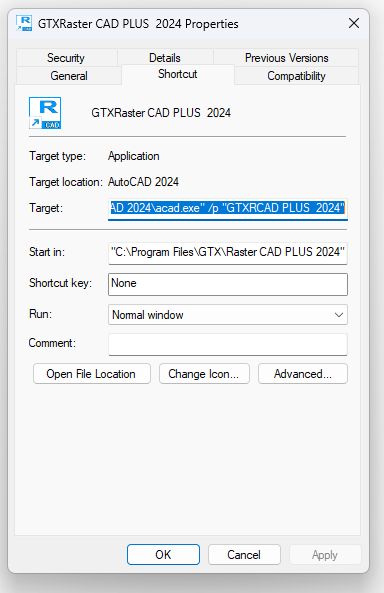
6. Modify the copied icon’s properties, Shortcut tab>Start-in path, to state “C:\GTXRaster CAD Plus”, as shown in the following example:
How This Works:
When AutoCAD is started using the new copy of the GTX icon, the Current Directory will be recognized as C:\GTXRaster CAD Plus, as stated in the new icon’s Start in path. The GTX application will apply all variable values stated in the C:\GTXRaster CAD Plus\GTXRAST.CFG file. The GTX product level will be recognized as RCADPLUS, and a GTXRaster CAD Plus license will be requested from a Network License Manager.