GTX Profile Configuration
AutoCAD / GTXRaster CAD Series
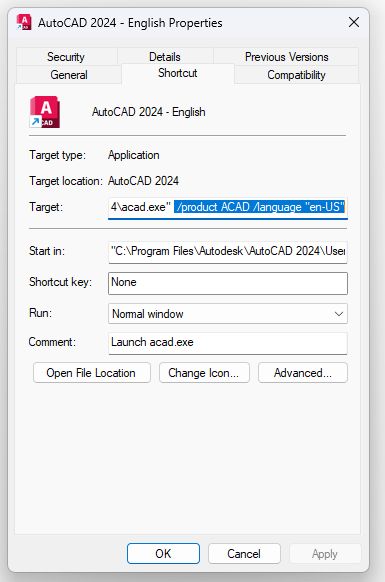
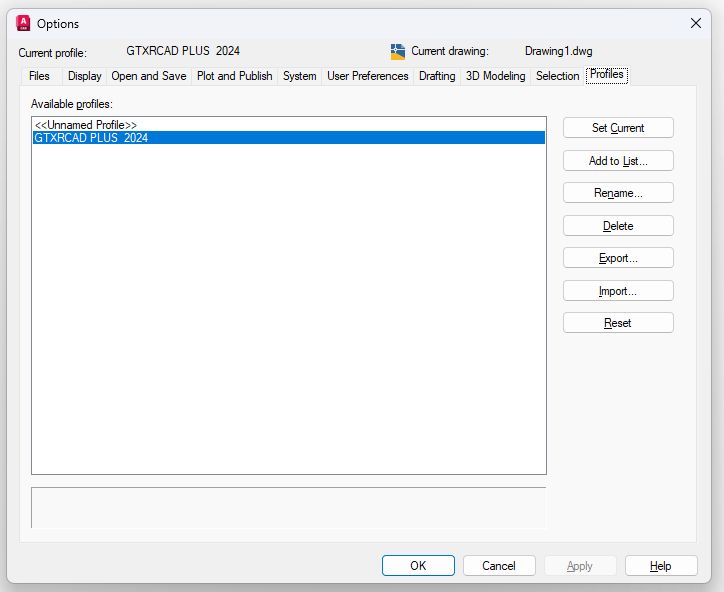
These images display important configuration details of an AutoCAD session that is started using the GTX profile. To open this AutoCAD Options window, type the word “config” or “options” on the AutoCAD command line. The Profiles tab, in the Options window, will display which profiles have been established.
The GTX profile is created, and a name for it is chosen, when the GTX program is installed. This profile creation occurs in the Windows registry belonging to the person who is the current logged-in user of Windows. When the GTX icon is started, an AutoCAD command line profile switch is applied which loads the GTX application in the AutoCAD session.
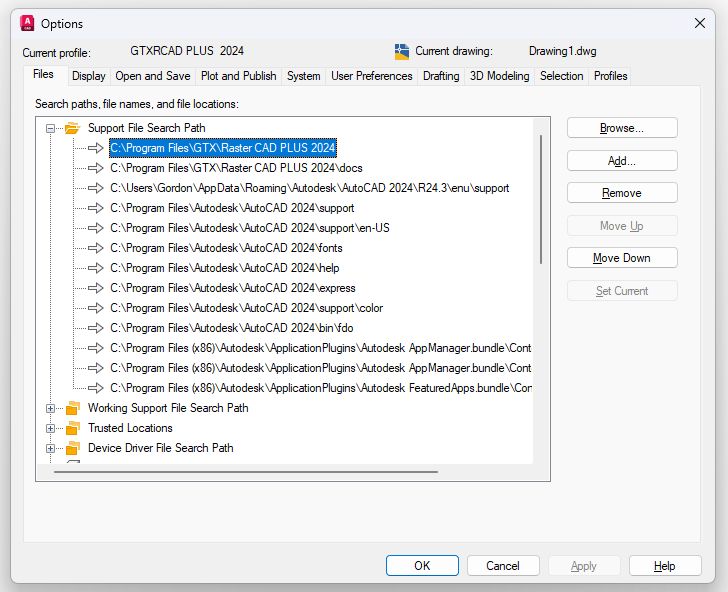
The Files tab of the AutoCAD Options may be used to explore the Support File Search Path. Under the GTXRaster CAD Series profile, in an AutoCAD session, the path to the Raster CAD program’s files will be found at the top of the Support File Search Path list. On startup, AutoCAD will first, search the Raster CAD program’s path to find the means of loading the GTX application and the RasterCAD Series menus and toolbars. Note the next path stated in the Support File Search Path list where upon startup AutoCAD will second, find the images to apply to the Raster CAD toolbars, as specified by the Raster CAD menu file.
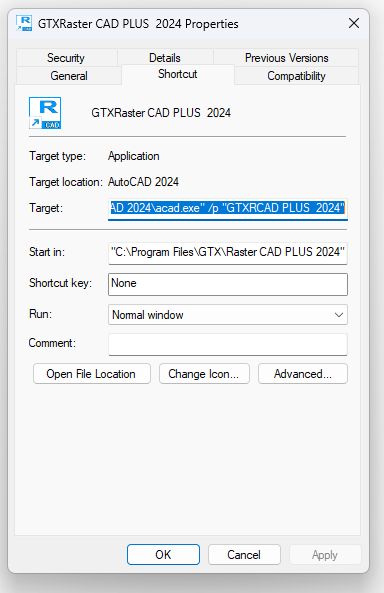
Examination of the properties of the icon which is used to start Raster CAD within an AutoCAD session, will reveal the AutoCAD command line, /p, switch which calls for the use of the GTX profile. This switch makes the GTXRaster CAD Series icon unique.
Once the use of a GTX icon has successfully started AutoCAD with the GTX profile, the use of a regular AutoCAD icon may also begin loading the Raster CAD Series program, due to the Window’s persistence feature. To overcome this change in results, from the use of the AutoCAD icon, a change must be made to that icon’s properties. Examine the Profiles tab in the AutoCAD Options window, as displayed above, to determine the name of the AutoCAD profile which was in use prior to the installation of the Raster CAD Series program. In many AutoCAD installations the default profile, named <<Unnamed Profile>>, may be found. Use that profile name, if it applies, along with the AutoCAD command line, /p, switch, as shown below. This will force the AutoCAD icon to start with the AutoCAD native profile.