
Register a Single User software license
For an installation of GTXImage CAD Series V21.0, the license must be initiated by the person who installed the program. GTX provides a single user software license in the form of a file named GTX.LIC, which must reside in the main GTXImage CAD Series V21.0 or GTXImage CAD View program folder. GTX will create the GTX.LIC file from information provided by the person who installs the GTX program.
Note: For complete information about the GTX.LIC file, read the topic
The GTX Single User License File.
The license registration mechanism has been updated for GTXImage CAD Series V21.0. You have the option of filling in the registration information on startup or at a later time by typing the GLICENSE command on the command line.
- Start GTXImage CAD Series V21.0 or GTXImage CAD View Program
- Click Registration Form Button
- Email resulting GTXREGISTRATIONINFO.txt file to GTX: activate@gtx.com
- Install GTX supplied GTX.LIC file
START the GTXImage CAD Series V21.0 program
Upon the first start of a newly installed, unlicensed, GTXImage CAD Series V21.0, the GTX application will identify the program’s unlicensed state, resulting in the following dialog. Note this dialog will also be displayed when running the gLicense command.
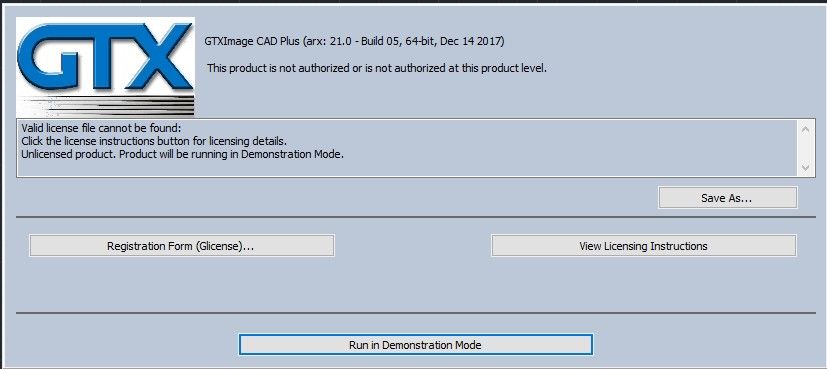
SELECT the Registration Form button
The Registration Form dialog will appear:
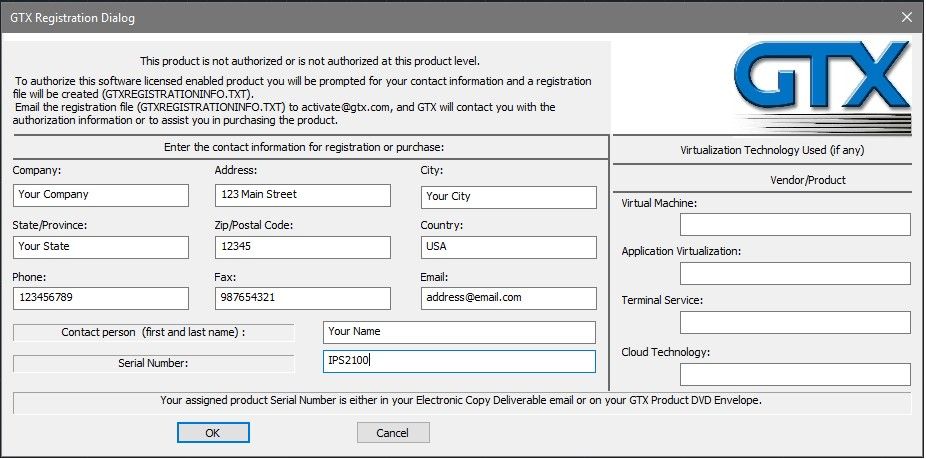
For this step to succeed, all required fields of the GTX Registration Dialog must be completed.
Your assigned product Serial Number is provided to you in your Electronic Copy Deliverables.
Email registration file to GTX
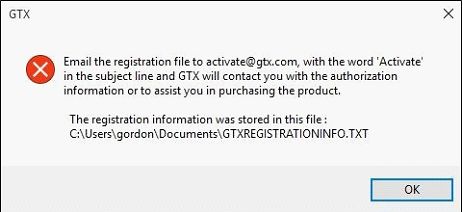
Success in this entry of information will result in the following instructive message. This message displays the name of the GTXREGISTRATIONINFO.TXT file, which should be emailed to: activate@gtx.com
Install GTX license file
If all is well with this transaction, GTX will return to the email sender, an active, authorized, GTX.LIC file. Copy the GTX.LIC file into the GTXImage CAD Series V21.0 installation folder. This is the final step in single user software license activation. Restart the application for the license to take affect.
Note, since you are now licensed, on startup, the blue product and license information dialog will no longer appear, but you can always review your product and license information by typing the GLICENSE command on the command line.